Thông tin Sale hội trăng rằm, Giá luôn rẻ - Giảm đến 15 triệu MUA NGAY





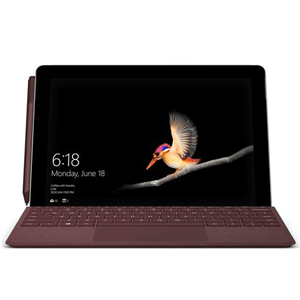
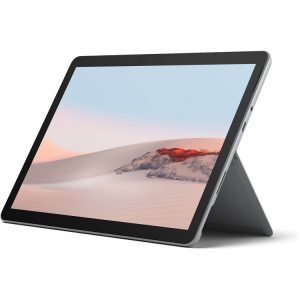










Have you ever felt like your high-end tablet was slowing down for no reason? I remember the first time I faced this with my own device. One day it was a productivity beast, and the next, it felt like it was stuck in molasses. In the tech world, especially here at Surface Plus in Hanoi, we often talk about the need to ghost surface pro units to bring them back to life. But what does that actually mean? For some, it’s about creating a perfect system backup (cloning); for others, it’s a spooky term for when the screen starts clicking things on its own.
Whether you are trying to deploy a fresh OS image across a fleet of devices or you are battling the dreaded “phantom touch,” you’ve come to the right place. In this blog, I’m going to share my years of hands-on experience as a technician to help you navigate everything related to a ghost surface pro. We will cover the technical imaging process, troubleshooting hardware glitches, and why sometimes a fresh start is exactly what your Surface needs.

What Does It Mean to Ghost Surface Pro?
The term “ghosting” a Surface Pro typically refers to one of two things:
- System Imaging: Creating a “Ghost” image (a compressed backup) of the entire operating system, apps, and settings to quickly restore or deploy the OS to multiple devices.
- Ghost Touches: A hardware defect where the touch screen registers inputs that the user didn’t make, often caused by interference, driver issues, or physical damage.
In the context of performance maintenance, ghost surface pro usually implies using software like Macrium Reflect or Acronis to clone the drive.
Back in the day, we used a program called Norton Ghost to clone hard drives. That’s where the term comes from. If your surface chạy chậm phải làm sao is the question on your mind, creating a clean “ghost” image of a fresh Windows installation is the professional way to ensure you never have to spend five hours setting up your apps again. It’s a time-saver, a lifesaver, and a must-know for any power user.
Why You Should Ghost Surface Pro for Peak Performance
Why do I suggest this to our customers at Surface Plus? Because Windows has a habit of getting “cluttered” over time. Registry errors, temporary files, and background processes start eating up your RAM. When you ghost surface pro, you are essentially taking a snapshot of the device when it is at its healthiest.
Imagine you’ve just finished installing all your Adobe suite, your Office tools, and your personalized settings. By creating a system image now, you create a point in time you can return to in under 15 minutes if things go south later. This is much faster than a standard factory reset. It’s the ultimate insurance policy against software corruption and malware.
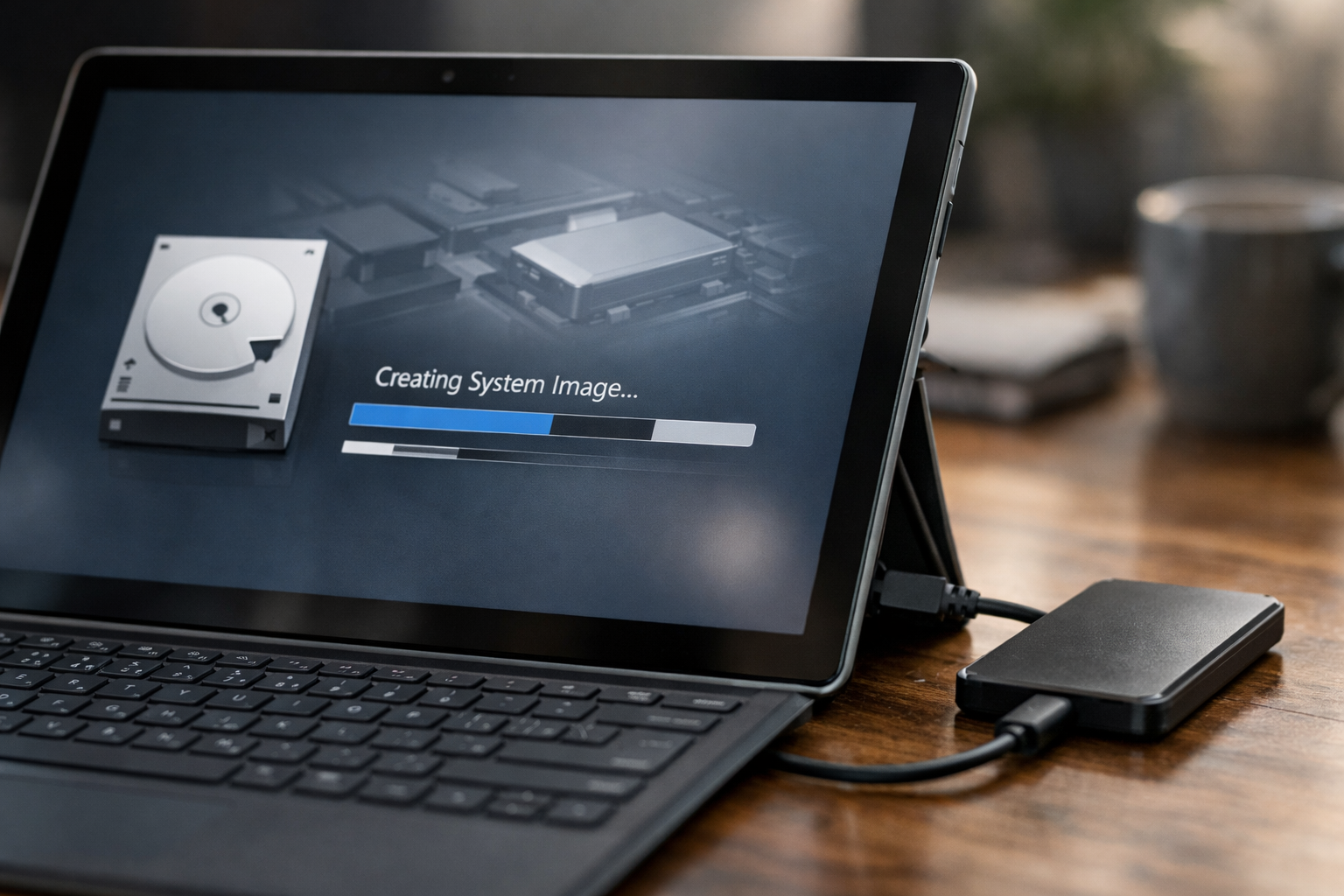
Moreover, if you own a business in Hanoi and have ten employees all using Surface Pros, you don’t want to set them up one by one. You set up one perfectly, ghost surface pro that configuration, and then “push” that image to the other nine. Efficiency is key when you’re managing premium hardware.
Step-by-Step: How to Ghost Your Surface Pro Properly
I always tell my clients that preparation is 90% of the work. Before you start, ensure you have a high-quality external SSD and a fully charged battery. Here is the process we use at the shop:
- Clean the OS: Before imaging, run a disk cleanup and ensure all Windows updates are installed. You don’t want to backup junk.
- Choose Your Tool: While Windows has a built-in “System Image” tool, I prefer third-party apps like Macrium Reflect or EaseUS Todo Backup for their reliability.
- Create Bootable Media: You’ll need a USB drive to boot into the recovery environment. This is crucial if your Windows won’t start at all.
- Capture the Image: Connect your external drive, select your internal SSD as the source, and let the software work its magic.
If you find this process too daunting, you might realize your surface cần cài lại win but you don’t have a backup. In that case, a clean install is your best bet, though you’ll have to reinstall your apps manually. You can find official recovery images on the Microsoft Support website, which are specifically tailored for Surface hardware drivers.
Troubleshooting Ghost Surface Pro Screen Issues
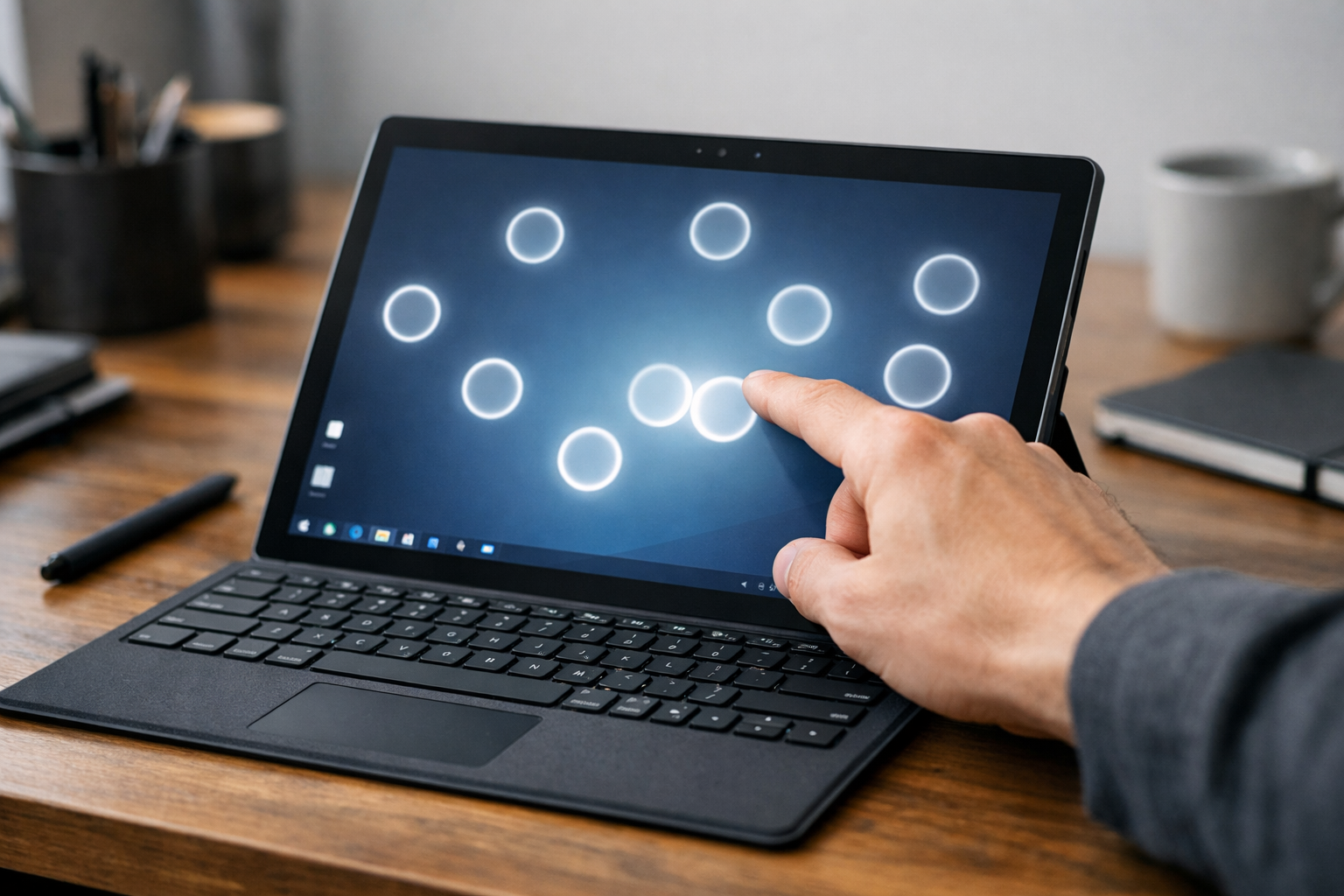
Now, let’s talk about the other “ghost”—the annoying one. Have you ever seen your cursor jumping around like a spirit is controlling it? That’s called a “ghost touch.” It’s a common reason why a surface pro bị lỗi and it can be incredibly frustrating when you’re trying to draw or sign a document.
In most cases, ghost touches are caused by static electricity or electromagnetic interference. Sometimes, it’s just a dirty screen. I’ve seen cases where a tiny bit of conductive dust near the bezel tricked the sensor into thinking a finger was there. Always start by cleaning your screen with a microfiber cloth and a bit of 70% isopropyl alcohol. If the ghost surface pro issue persists, it might be a driver conflict. Try disabling the “HID-compliant touch screen” in Device Manager and re-enabling it to reset the hardware handshake.
Ghost Surface Pro vs. Clean Install: Which is Better?
This is a question I get asked daily at our Hanoi store. A clean install is like building a house from scratch. It’s pure, but it takes forever to move the furniture back in. When you ghost surface pro, you are moving the entire house, furniture and all, to a new location.
If your current system is riddled with bugs, don’t ghost it—you’ll just be backing up the bugs. Perform a clean install first. Once the system is perfect, then create your ghost image. This “Golden Image” strategy is what professional IT departments use to keep their systems running smoothly for years without slowdowns.
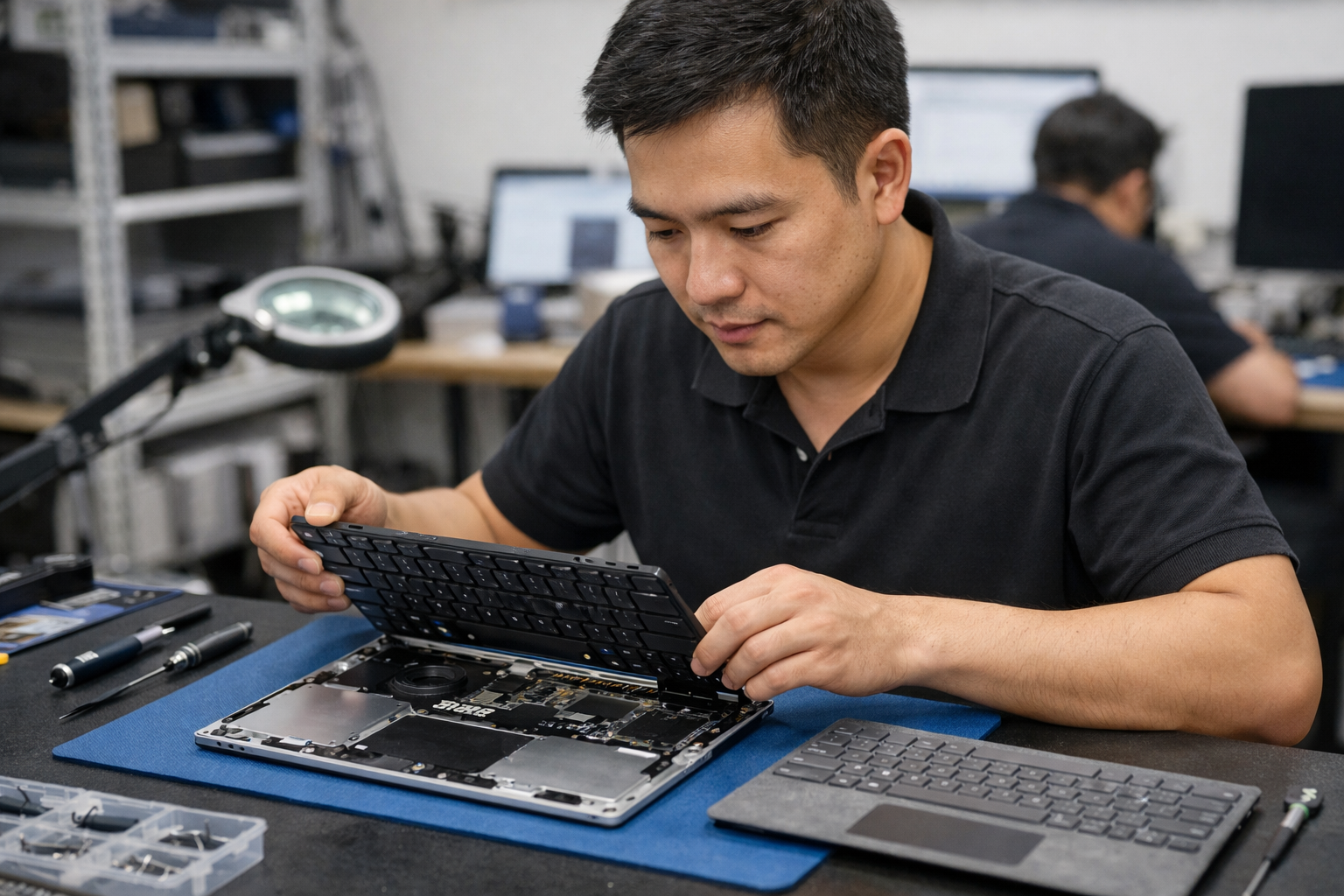
Remember, hardware issues like a failing SSD can also mimic software corruption. If your Surface keeps crashing even after a restore, it might be time to bring it in for a diagnostic. At Surface Plus, we see many older Pro 4 and Pro 5 models where the SSD begins to fail, making any ghosting attempt useless until the hardware is replaced.
Conclusion: Keeping the Ghosts Away
Whether you are dealing with the technicalities of system deployment or the annoyance of phantom screen inputs, understanding the concept of a ghost surface pro is essential for any owner. By keeping a clean system image on an external drive, you protect yourself from data loss and hours of tedious setup. And if your “ghosts” are of the hardware variety, don’t panic—most touch issues can be resolved with a driver refresh or a thorough cleaning.

At Surface Plus, we pride ourselves on being the go-to experts for all things Microsoft Surface in Hanoi. From providing affordable used models to complex software recoveries, we’ve seen it all. Don’t let your device haunt you with slow speeds or erratic behavior. Use the tips above to regain control, and if you ever feel stuck, our team is always here to help you get your Surface back to its prime condition. Stay productive, and happy ghosting!