Thông tin Sale hội trăng rằm, Giá luôn rẻ - Giảm đến 15 triệu MUA NGAY




































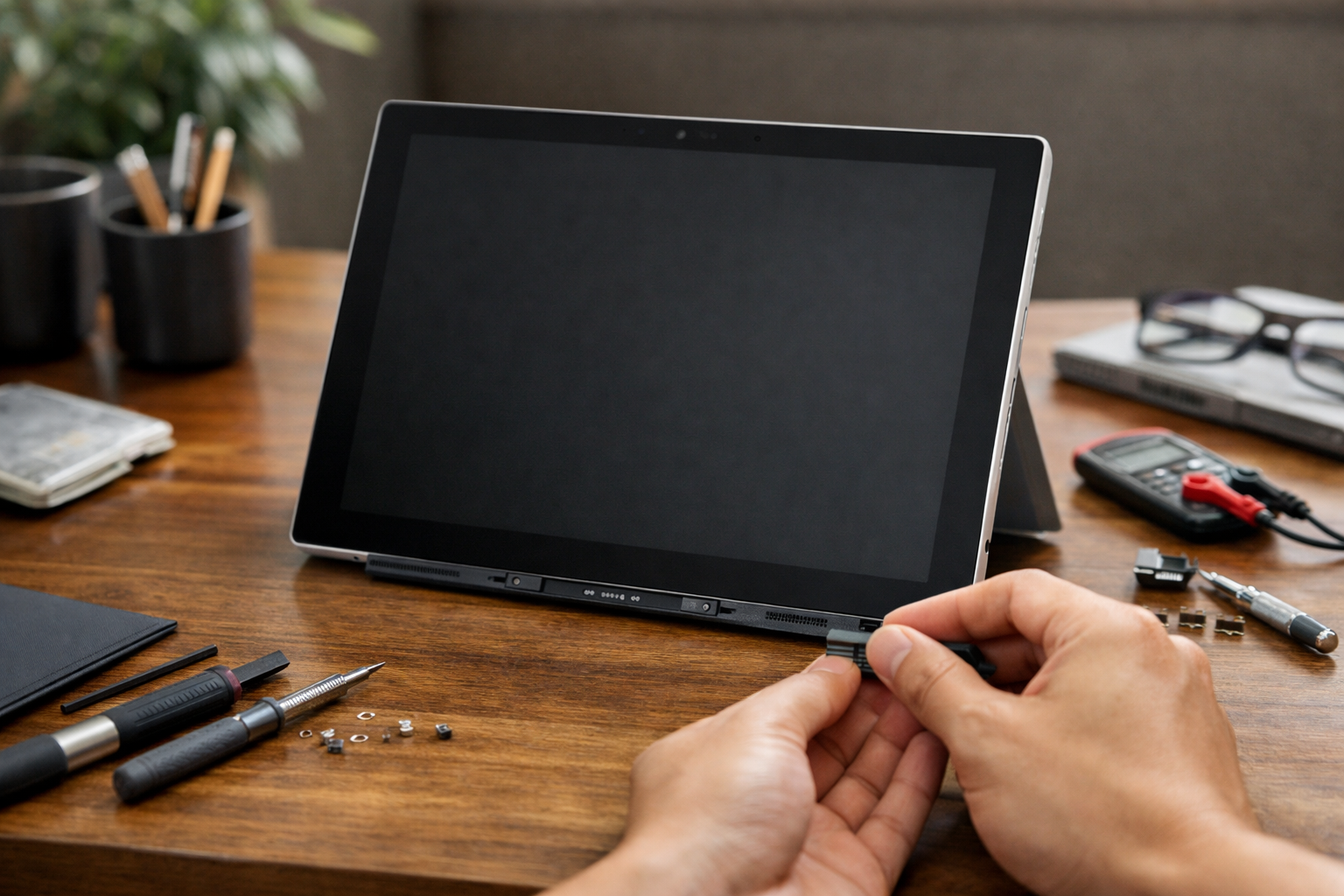
Have you ever felt that sinking feeling when your trusty tablet starts lagging right in the middle of an important project? I’ve been there. Working at Surface Plus in Hanoi, I’ve seen hundreds of devices come through our doors, and often, the most effective solution to a sluggish machine is a fresh start. Whether you’re dealing with persistent bugs or you’re getting ready to hand your device over to a new owner, learning how to reset surface pro is a skill every user should have in their back pocket.
In this guide, I’m going to walk you through the process just like I would if you walked into our shop today. We will cover the different methods to reset surface pro, from the simple settings menu to the more advanced recovery options. Let’s get your device running like it’s brand new again!
What to Do Before You Reset Surface Pro
Before we dive into the buttons and menus, we need to talk about your data. Resetting is a powerful tool, but it can be destructive if you aren’t careful. I always tell our customers at Surface Plus that a reset should be the final step after trying other fixes. For instance, if you are wondering surface chạy chậm phải làm sao, you might try clearing your cache first. However, if that doesn’t work, a reset is the way to go.
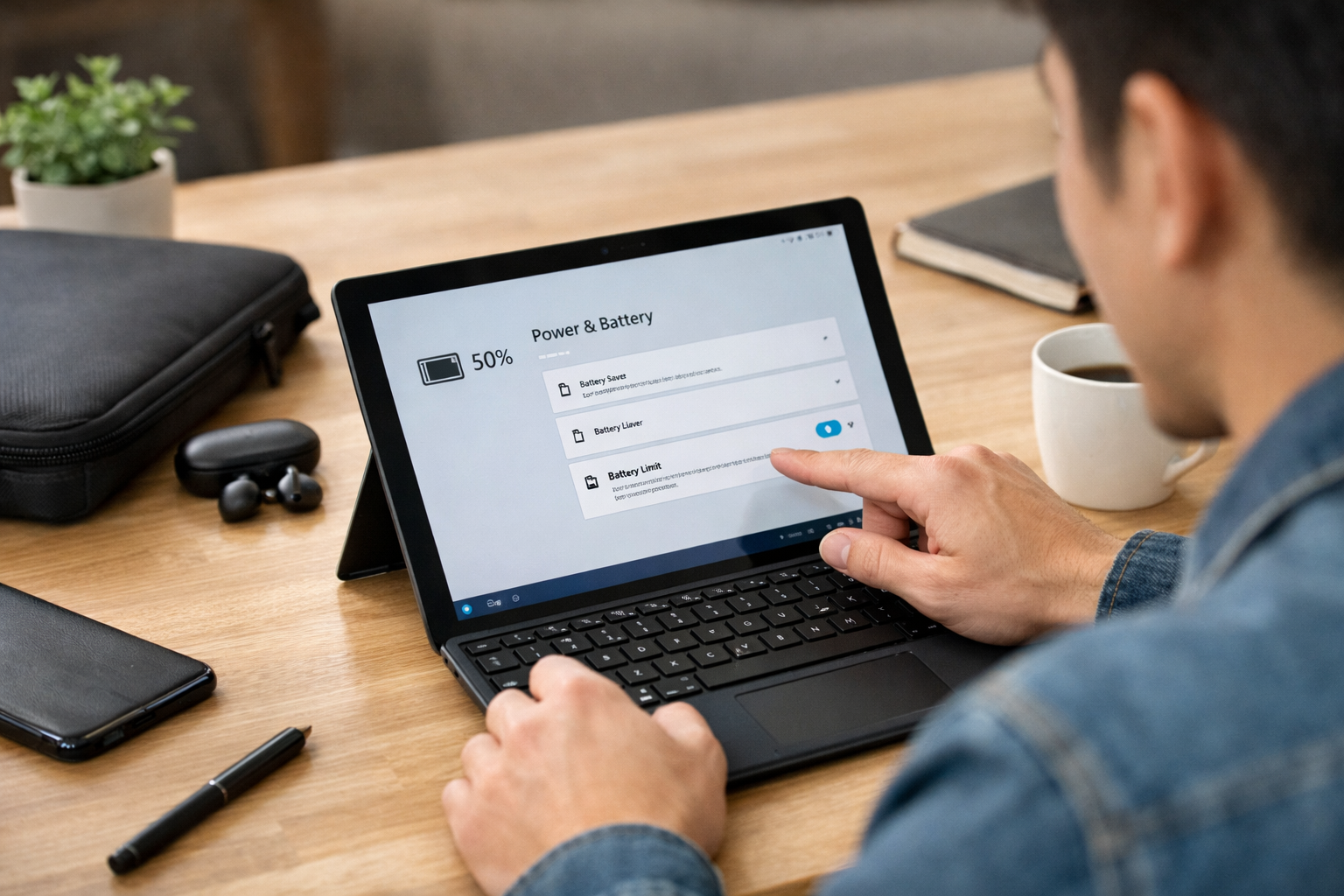
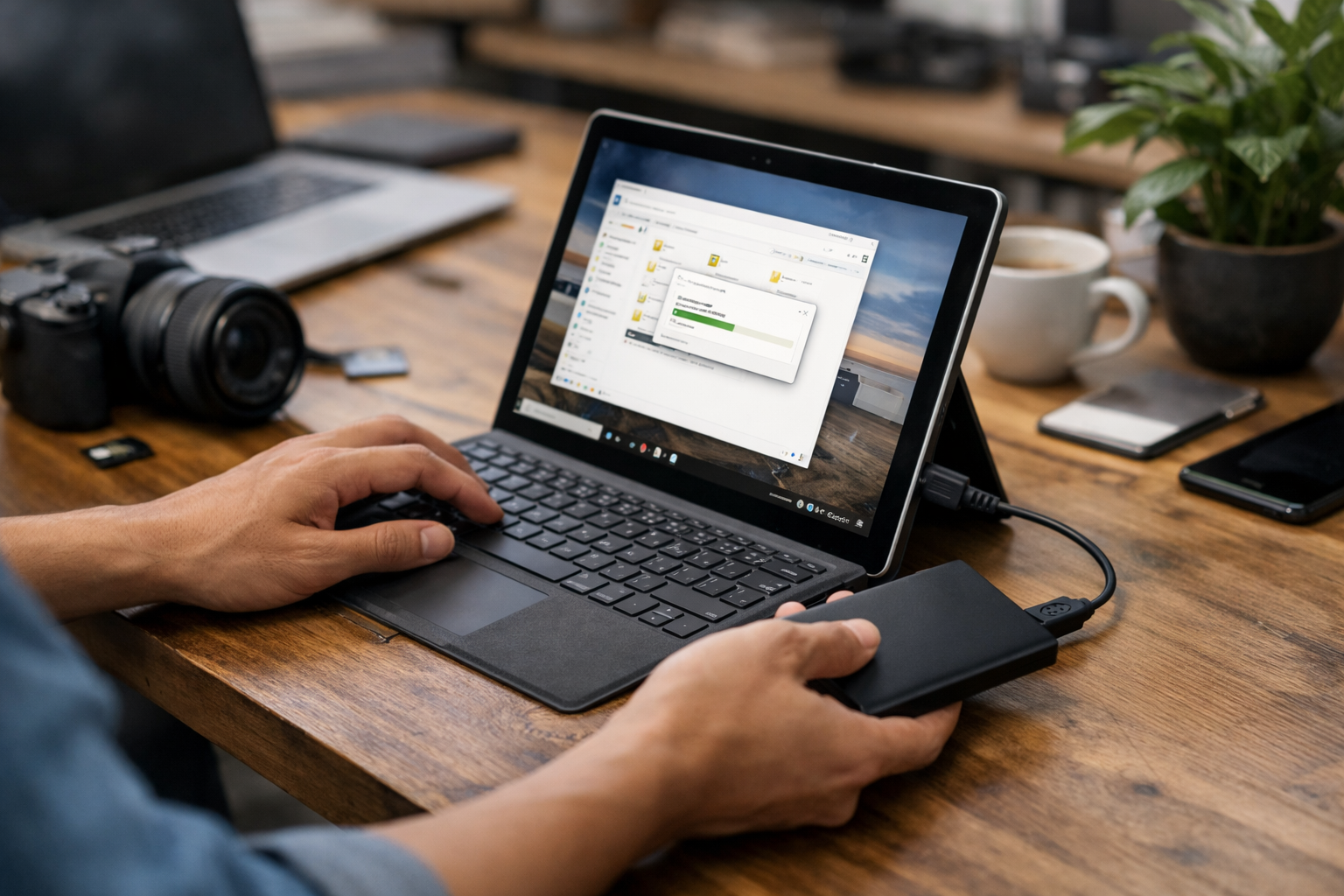
First, back up everything. Use OneDrive or an external hard drive to save your photos, documents, and work files. Second, make sure your device is plugged into power. The last thing you want is for your Surface to die in the middle of a Windows reinstallation. Lastly, if your surface bị đầy bộ nhớ, a reset will help clear out all that hidden system junk that a simple delete won’t touch.
Step-by-Step: How to Reset Surface Pro via Settings
If your Surface Pro is still booting into Windows, this is the easiest and most common way to perform a reset. It’s the method I recommend for most users because it gives you the most control over what happens to your files.
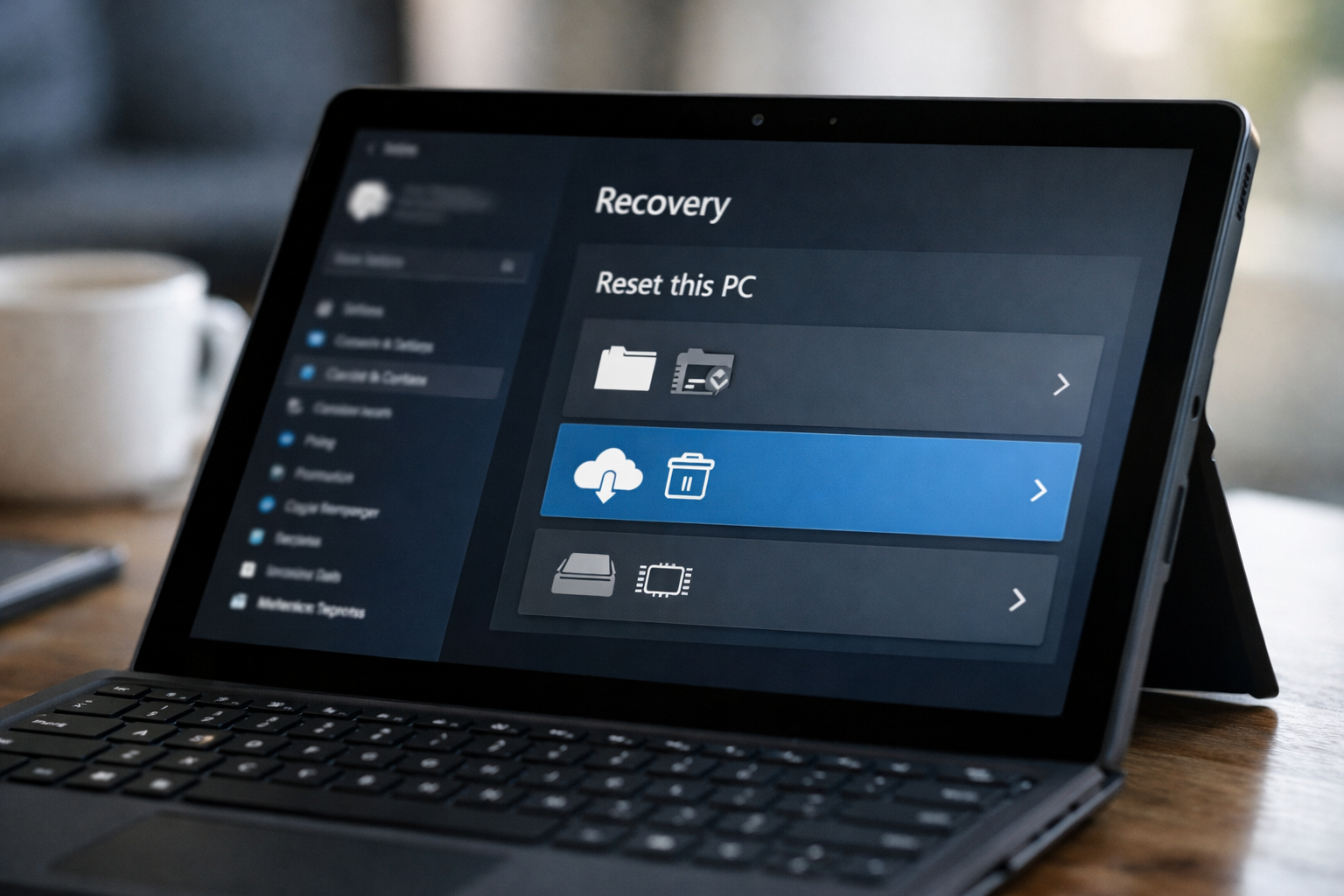
- Open Settings and go to System (or Update & Security on older versions).
- Click on Recovery.
- Find Reset this PC and click the Reset PC button.
- Choose ‘Keep my files’ to refresh Windows or ‘Remove everything’ for a full factory wipe.
- Choose between ‘Cloud download’ (recommended) or ‘Local reinstall’.
- Follow the final prompts and click Reset.
The difference between “Keep my files” and “Remove everything” is crucial. If you’re keeping the device but it’s just acting buggy, keep your files. But if you’re selling it, you MUST choose to remove everything to protect your privacy. According to official Microsoft documentation, the “Cloud download” option is often more reliable because it pulls the latest system files directly from their servers.
Using the Login Screen to Reset Surface Pro
What if you can’t get past the login screen? Maybe you forgot your password, or the system is hanging before the desktop loads. Don’t panic! You can still reset surface pro without being logged in. This is a trick we often use when a customer brings in a surface pro bị lỗi that prevents them from accessing the UI.
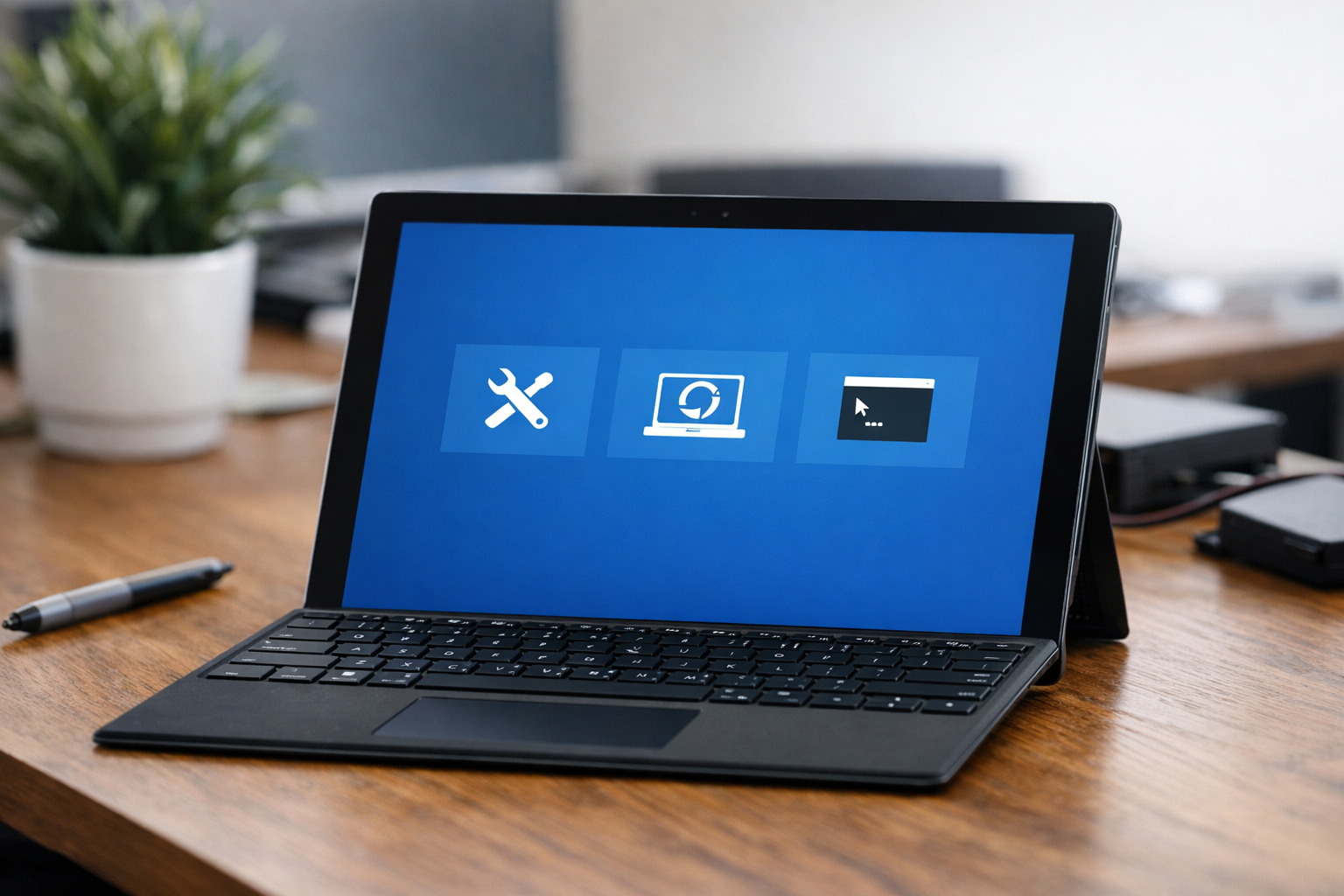
To do this, hold down the Shift key on your keyboard while you select Power > Restart on the screen. This will boot your Surface into the Windows Recovery Environment (WinRE). From there, you can navigate to Troubleshoot > Reset this PC. It’s a very robust way to bypass software glitches that are locking you out of your own device.
Cloud Download vs. Local Reinstall
When you initiate the process to reset surface pro, Windows will ask how you want to reinstall the OS.
- Cloud Download: This downloads a fresh copy of Windows. It requires an internet connection but is great if your local system files are corrupted.
- Local Reinstall: This uses the files already on your Surface. It’s faster but might fail if your current Windows installation is severely damaged.
I usually suggest the Cloud Download to our clients at Surface Plus just to be 100% sure the new system is clean and bug-free.
Advanced Method: Using a USB Recovery Drive
Sometimes, the internal recovery partition is damaged. If your Surface won’t start at all, you’ll need a separate working computer and a USB drive (at least 16GB) to create a Surface Recovery Image. You go to the Microsoft website, enter your Surface Pro’s serial number, and download the specific image for your model. This is the most “thorough” way to reset surface pro because it wipes the drive completely and re-images it with the factory-standard software.
At Surface Plus, we keep recovery drives ready for every model of Surface Pro ever made. It’s a bit more technical, but it’s the ultimate fix for a tablet that refuses to behave. If you ever find yourself stuck here, feel free to reach out to a professional; sometimes a hardware issue can masquerade as a software one.
Frequently Asked Questions
How long does it take to reset Surface Pro?
Generally, it takes between 30 minutes to 2 hours. If you choose the “Cloud download” and have a slow internet connection, it might take longer. If you choose to “fully clean the drive,” it can take several hours as it overwrites data for security.
Will resetting my Surface Pro delete my Windows license?
No! Your license is tied to the hardware (the motherboard). Once you finish the reset and connect to the internet, Windows will automatically activate itself. You don’t need to worry about finding a product key.
What if the reset fails?
If the reset gets stuck at a certain percentage for more than a few hours, there might be a hardware issue with your SSD. This is when you should bring it into a specialized shop like Surface Plus in Hanoi for a diagnostic check.
Conclusion
Learning how to reset surface pro is one of the most valuable things you can do to maintain your device’s health. It clears out the clutter, fixes deep-seated software errors, and ensures your data is safe when you move on to a newer model. Remember to always back up your data first, keep your charger plugged in, and don’t be afraid to use the “Cloud download” for the cleanest experience.
If you’ve tried everything and your Surface Pro is still acting up, or if you’re looking to upgrade to a newer model, come visit us at Surface Plus – Cửa hàng Surface cũ giá rẻ Hà Nội. We’re always here to help the Hanoi community get the most out of their Microsoft devices!